On This Page
Create a P12 Certificate
If you are using the OAuth with JWT security policy, you must create a P12 certificate in
addition to a shared secret key pair. You might have already completed this requirement if
your system is currently REST compliant.
Follow these steps to create a P12 certificate file or submit your own certificate
signing request (CSR):
- Log in to theSmartpay Fuse Portal:
- On the left navigation panel, choose
 Payment Configuration > Key Management.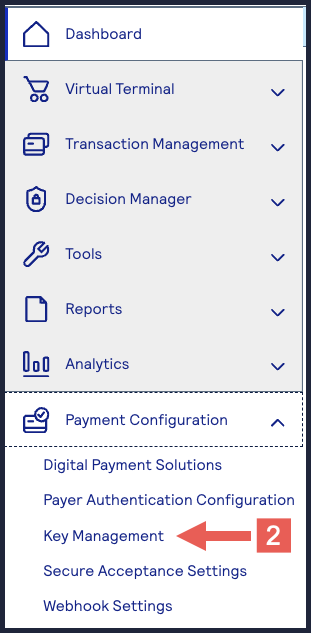
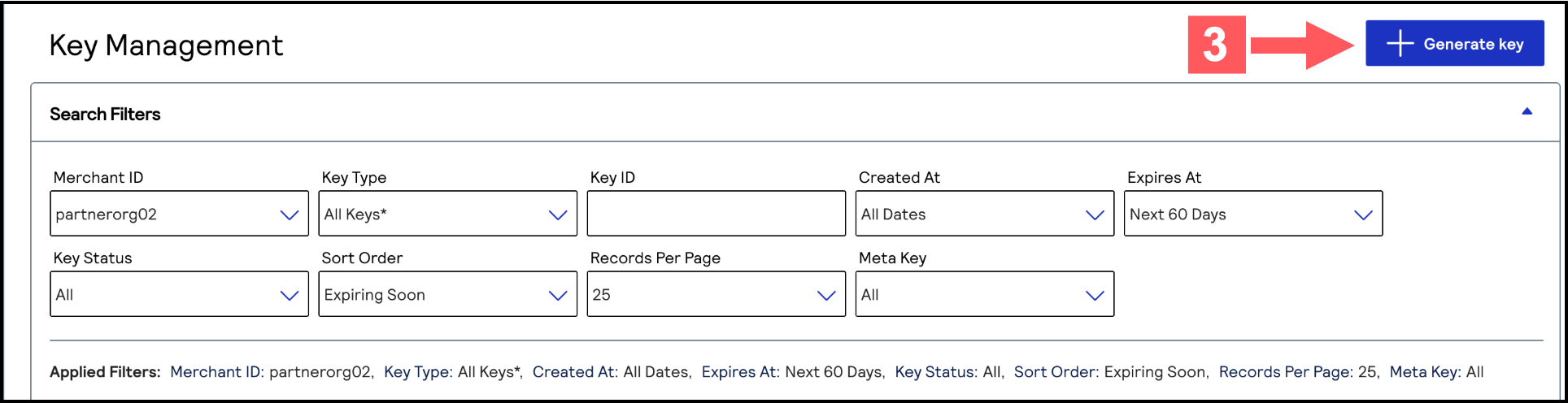
- Click+ Generate keyon the Key Management page.
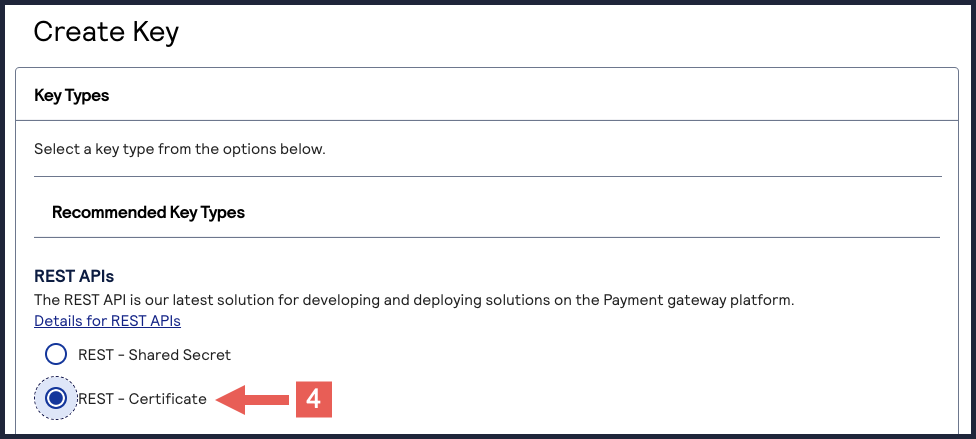
- Under REST APIs, chooseREST – Certificate, and then clickGenerate key.The Key Generation page appears.If you are using aportfolioaccount, the Key options window appears, giving you the choice to create a meta key.
- (Optional) You can set the Certificate Expiry Timeframe field to the number of months you want the key to remain active before it expires. Only whole numbers from 1–36 are accepted. By default, new keys expire after 12 months.
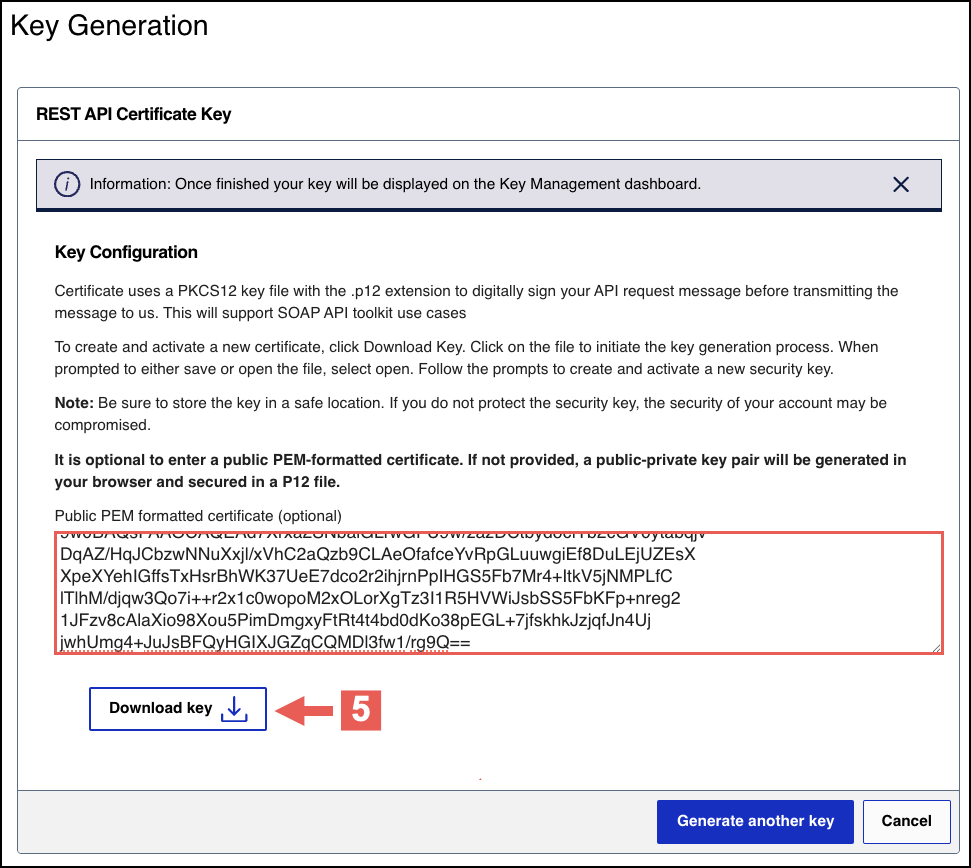
- Choose from these two options:
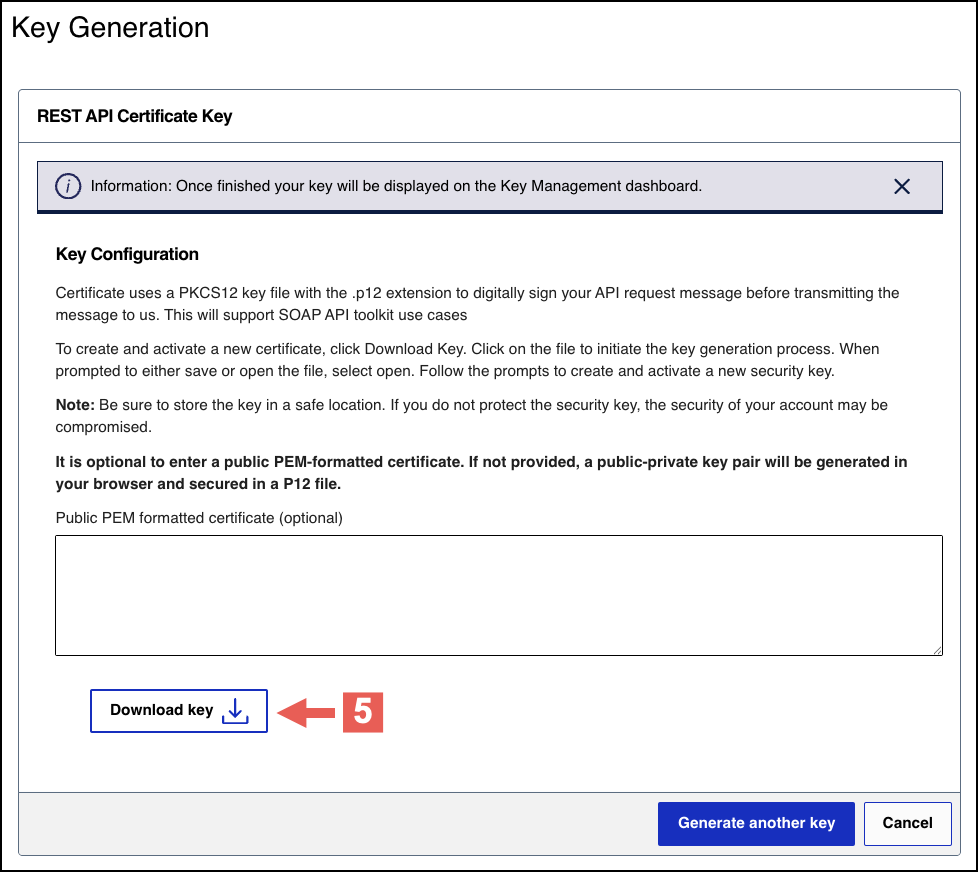
- If you are a creating a new P12 Certificate, clickDownload key
 .
.
- If you are submitting your own certificate, enter your public PEM-formatted certificate in the text box, then clickDownload key
.
- Create a password for the certificate by entering one into theNew PasswordandConfirm Passwordfields. ClickGenerate key.
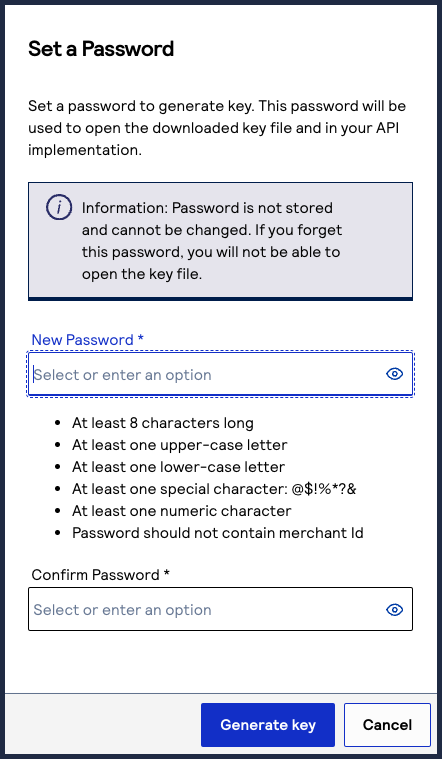 The.p12file downloads to your desktop.If prompted by your system, approve the location to which the key downloads.
To create or submit another key, click
Generate another key
. To view all of
your created keys, go to the Key Management page.IMPORTANT
Securely store the
.p12
file and password in your
system.