On This Page
Enable Unified Checkout
Unified Checkout
To begin using
Unified Checkout
, you must first ensure that your merchant ID (MID)
is configured to use the service and that any payment methods you intend to use are
properly set up.- Log in to theSmartpay Fuse Portal:Production URL:If you are unable to access this page, contact your sales representative.
- In theSmartpay Fuse Portal, go to the left navigation panel and choosePayment Configuration>Unified Checkout. TheUnified Checkoutcustomer experience page appears:
Figure:
Unified CheckoutCustomer Experience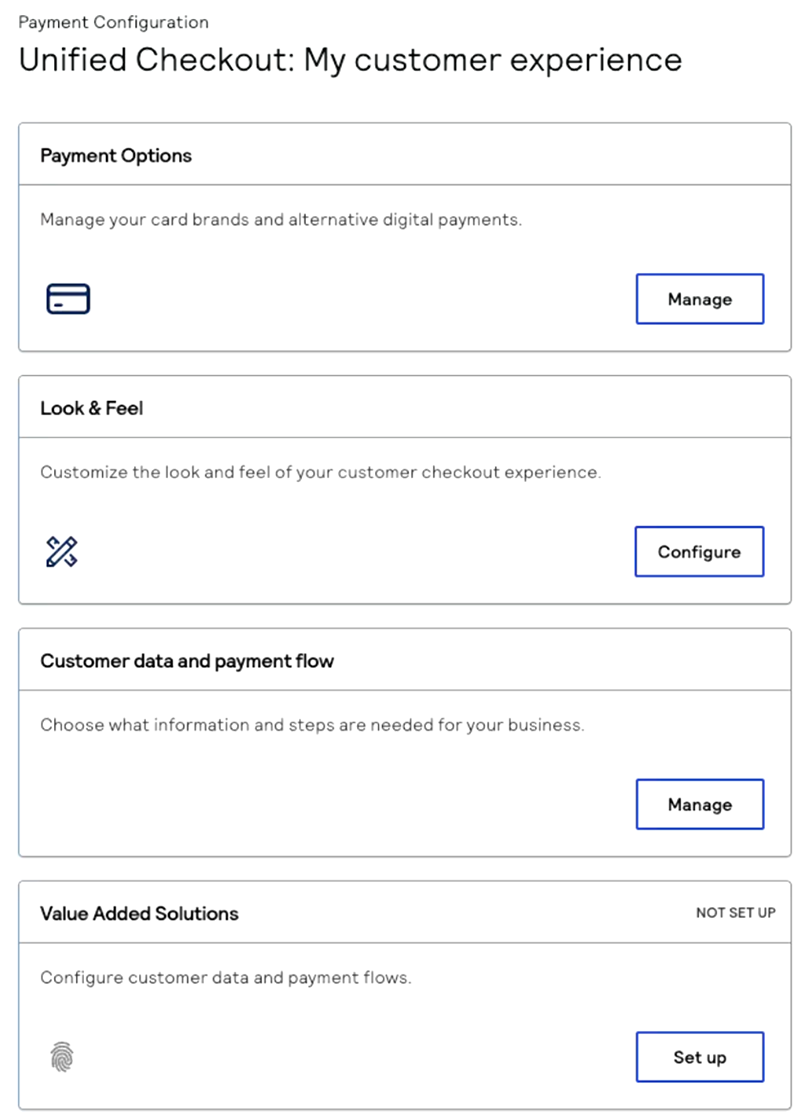
- TheUnified Checkoutconfiguration interface provides complete low-code control over your checkout experience by using dedicated configuration screens accessible through theSmartpay Fuse Portal. The configuration interface is organized into separate screens, each accessible from theMy customer experiencepage. Configure each of these components of the checkout experience:
- Payment Options: Add, remove, and arrange payment methods. For information about configuring payment methods, see Configure Payment Options.
- Look & feel: Configure visual appearance and branding. For information about configuring the look and feel, see Customize the Unified Checkout Look and Feel.
- Customer information and payment flow: Control data collection and manage payment processing service. For information about configuring customer data, see Configure Customer Data and Payment Flow.