On This Page
Configure Customer Data and Payment Flow
Use the Customer data and payment flow section of the
Smartpay Fuse Portal
to
configure the information that you want to collect during checkout. Follow these
steps to customize the appearance of Unified Checkout
in the Smartpay Fuse Portal
:- Log in to theSmartpay Fuse Portal:Production URL:If you are unable to access this page, contact your sales representative.
- In theSmartpay Fuse Portal, go to the left navigation panel and choosePayment Configuration>Unified Checkout. TheUnified Checkoutcustomer experience page appears:
Figure:
Unified CheckoutCustomer Data and Payment Flow Merchant Experience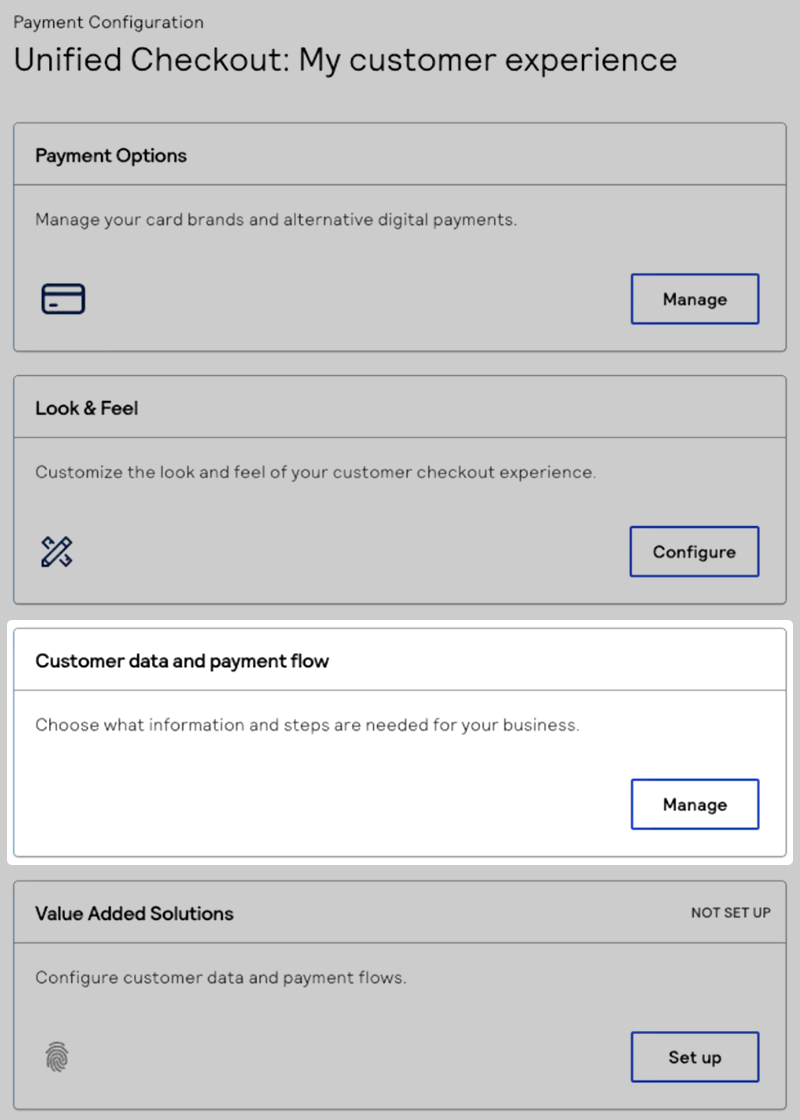
- In the Customer data and payment flow section, clickManage. The Customer information and payment flow page appears.
- Under Contact details, slide the toggle (
 ) next to Email address and Mobile phone number
to collect the customer email address and phone number during checkout.
) next to Email address and Mobile phone number
to collect the customer email address and phone number during checkout. - Under Payment details, slide the toggle (
) next to Billing address to collect the
cardholder billing address.
- Under Payment details, in the Billing address drop-down menu, select the billing address information for payment verification:
ADDITIONAL INFORMATION
- Full address: Request the full cardholder billing address during checkout.
- Zip code only: Request only the zip code of the cardholder billing address during checkout.
- Under Payment details, slide the toggle (
) next to Shipping address to collect the
cardholder shipping address.
- Under Payment details, in the Shipping address drop-down menu, select the countries that you ship to.
- Under Checkout review step, slide the toggle (
 ) to display a review page for the customer to
confirm the payment and shipping address.
) to display a review page for the customer to
confirm the payment and shipping address. - Under payment processing and & service orchestration, slide the toggle (
) in the Payment processing section to control
how to process transactions:You can turn payment processing on or off:
- Payment Processing ON:Unified Checkouthandles the complete payment for you automatically. When payment processing is on, you can select how transactions are processed:
- Preferred auth: Choose this option to authorize the payment when possible.
- Sale: Choose this option to capture the funds immediately.
- Payment Processing OFF: You must complete the payment independently using VISA or another selected gateway.
For information about enabling or disabling payment processing inUnified Checkout, see Process Payments with Unified Checkout. - Under save customer information in payment processing and & service orchestration, slide the toggle to the right to prompt the user to save their payment information for future use.Saving customer payment details can significantly improve the checkout experience for returning customers. There are two approaches that you can use:
- Ask for consent to save payment information for future use: This option displays a checkbox during checkout that asks customers if they want their payment details saved. You can enable this option regardless of if payment processing is enabled at any time.
- Store payment details securely in your: This option saves payment information using secure encryption and links directly to yourTMSvaultTMSvault. This enables faster checkout for returning customers by using tokens rather than raw card data.
IMPORTANTIf you already have cardholder consent (for example, if it was obtained during account creation or through another verified process) or consent is not required for your flow, you should not display or request consent again in the UI. - Under Fraud detection in payment processing and & service orchestration, use the drop-down menu to turn fraud detection withDecision ManagerorFraud Management EssentialsOnorSkip.
- Under Localized payment settings, slide the toggle (
) to enable these features:
ADDITIONAL INFORMATION
- Combo cards: Enable cardholders to decide how to process their payments.
- Brazil tax ID: Collect a customer's CPF or CNPJ at checkout.
IMPORTANTCombo cards and tax IDs are only available in Brazil. - ClickSave and publishto save your customer payment settings.